TP05.II.A Errata: In TP04.II where we set up Basic
Authentication in Linux for the BASite directory, changes we made in the
apache2.conf configuration file also required that web directories
contain a .htaccess file to control authentication for the directory. To
avoid a 403 Forbidden error accessing your root web directory (i.e.,
/var/www/html accessed via http as http://localhost) you will need to add the
following .htaccess file in the root folder which says any access is
allowed. Before beginning TP05.II.A use
sudo nano /var/www/html/.htaccess
from a terminal and enter / save the following lines:
AuthType None Require all granted
In your local VMware Linux VM create the following files in the
/var/www/html folder (default location for internet files);
note that you may need sudo authority to create / place files in this
folder:
noext with content
this file has no extensionputty.exe which can be downloaded from
hereprevent.this with content
this file should not downloadtstscript.ps1 with content
# A PowerShell fileWork with MIME types and .htaccess as necessary so that
http://localhost/noext to your document;http://localhost/putty.exe to your document;http://localhost/prevent.this to your document;
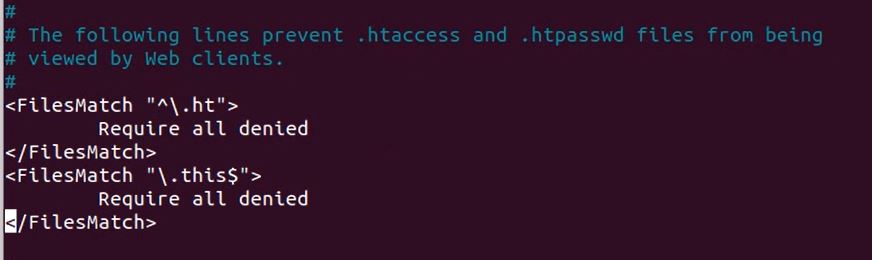
Note: I could not get this to work using .htaccess but
changing /etc/apache2/apache2.conf [example]
didhttp://localhost/tstscript.ps1 to your document.In your local xxxxLS1 VM create four users with names Alfa User, Bravo User, Charley User, and Delta User with logins auser, buser, cuser, and duser.
Logged in administrator on your VM with your Documents as current working directory create directories named AlphaDir, BetaDir, and GammaDir. Each folder should contain two text files named FileA.txt and FileB.txt each with some content you create.
Establish file access permissions on these sub-directories and files so that:
Hint: Create a group with auser and buser, set this as the owner group for GammaDir and its files with appropriate group permissions. Similarly for auser, cuser, and AlphaDir.
When permissions have been set and tested, use a terminal window with your admin account making your Documents the current working directory. Execute the commands
date > ./LinPerms.txt
whoami >> ./LinPerms.txt
hostname >> ./LinPerms.txt
ls -l >> ./LinPerms.txt
ls -l AlphaDir >> ./LinPerms.txt
G=$(stat -c "%G" AlphaDir) >> ./LinPerms.txt
getent group $G >> ./LinPerms.txt
ls -l BetaDir >> ./LinPerms.txt
G=$(stat -c "%G" BetaDir) >> ./LinPerms.txt
getent group $G >> ./LinPerms.txt
ls -l GammaDir >> ./LinPerms.txt
G=$(stat -c "%G" GammaDir) >> ./LinPerms.txt
getent group $G >> ./LinPerms.txt
Attach the resulting LinPerms.txt file to this assignment in D2L.
Based on your background with Python, experience with Ubuntu, and research (e.g., How to Run Python Scripts in Linux Command Line (linuxhandbook.com) implement the GCD algorithm using Python in your xxxxLs1 VM. Create a screen cap named LinPython.jpg (or other image format) of a terminal which shows
Attach a copy of the LinPython screen capture to this assignment in D2L.
C:\inetpub\wwwroot (you may need admin
authority to save / put files in this folder). Adjust settings so the
same download behaviors occur. Make a similar set of four screen caps
which you add to your document.Attach your completed MIME.docx (it should have 8 screen caps, 4 from Linux, 4 from Windows) to this assignment in D2L.
In your VMware Windows Server VM create four users with names Alfa User, Bravo User, Charley User, and Delta User with logins auser, buser, cuser, and duser.
Logged in administrator on your VM with your Documents as current working directory create directories named AlphaDir, BetaDir, and GammaDir. Each folder should contain two text files named FileA.txt and FileB.txt each with some content you create.
Establish file access permissions on these sub-directories and files so that:
When permissions have been set and tested, use a PowerShell window with your admin account making your Documents the current working directory. Create the PowerShell script ListACL.ps1 in your Documents folder by, e.g., downloading the text file ListACL.txt into your Documents and renaming it ListACL.ps1. Execute the following commands from a PowerShell console with you Documents as working directory:
.\ListACL -RootPath AlphaDir | Out-File .\WinPerms.txt;
.\ListACL -RootPath BetaDir | Out-File .\WinPerms.txt -Append;
.\ListACL -RootPath GammaDir | Out-File .\WinPerms.txt -Append;
Attach the resulting WinPerms.txt file to this assignment in D2L.
Repeat the previous exercise in your xxxxWS1 VM (e.g., see Get started using Python on Windows for beginners), naming the screen cap WinPython.jpg (or other image format). Attach a copy of the screen capture to this assignment in D2L.