[[TechPrac05 Instructions]]
Ref: (Video) Using basic authentication for web sites in IIS
TechPrac04.II.A Errata: Adding Users: When I recorded the video that accompanies this exercise – (Video) Using basic authentication for web sites in IIS – I happened to be on a computer that had Active Directory (AD) installed and when I add a user I used Active Directory Users and Groups. Our Windows servers don’t have AD so continue to add users the way we have all term (e.g., see Adding Users scrolling down to the section Windows Server without Active Directory). Sorry for any confusion; Active Directory is not required for this task.
In your VMware xxxxWS1 Windows Server VM complete the following system administration tasks:
http://localhost/BASite/BAPage.html where you should be
challenged for credentials; enter BAUser login and password but before
proceeding get a screen cap which includes the url and authentication
window naming it IISBA1.jpg (or other image
format).Attach the two screen caps to this assignment in D2L.
Linux Apache Version
Ref: (Video) Using basic authentication for web sites in Apache | Notes Note: Copying and pasting from a pdf into nano in a Linux terminal can sometimes bring invisible characters which foul up the configuration files; you are better off carefully typing in the configurations.
In your VMware Ubuntu Server VM with Apache web server installed, complete the following system administration tasks:
http://localhost/BASite/BAPage.html where you should be
challenged for credentials; enter BAUser login and password but before
proceeding get a screen cap which includes the url and authentication
window naming it ApacheBA1.jpg (or other image
format).Attach the two screen caps to this assignment in D2L.
25 pts - System Log Intro
Windows Version
Ref: (Video) Windows events log
Attach your WinLogs.docx to this assignment in D2L.
TechPrac04.III.B.7 MySQL Log Errata
Sorry for any confusion but in reshuffling some assignment tasks I have TP04.III about logs before TP04.V about installing MySQL in Ubuntu. Task TP04.III.B.7 asks you to look at your MySQL log which won’t be there unless you complete TP04.V first. Just something that slipped past me in prepping this term’s work.
Recent versions of MySQL changed default logging levels, so to get MySQL log to catch the bad login use the following from a Linux terminal to get into MySQL, change the logging level, exit MySQL and then try the bad login which should show up in the log.
sudo mysql
set global log_error_verbosity = 3;
exit
mysql # should be access denied
sudo tail /var/log/mysql/error.log -n 1 # should show in log
Ref: (Video) A quick look at Linux log files
Do this exercise in your xxxxLS1 VM with Apache and MySQL both installed. Begin a document named LinLogs.docx; as you complete the steps below add the nine screen caps requested into the document:
In a terminal window use the Linux logger command to add an entry to syslog containing something like the following
I am Todd Schultz and I am surviving AIST3720!
where you use your own name and can adjust the message about AIST3720 if you want (no screen cap needed).
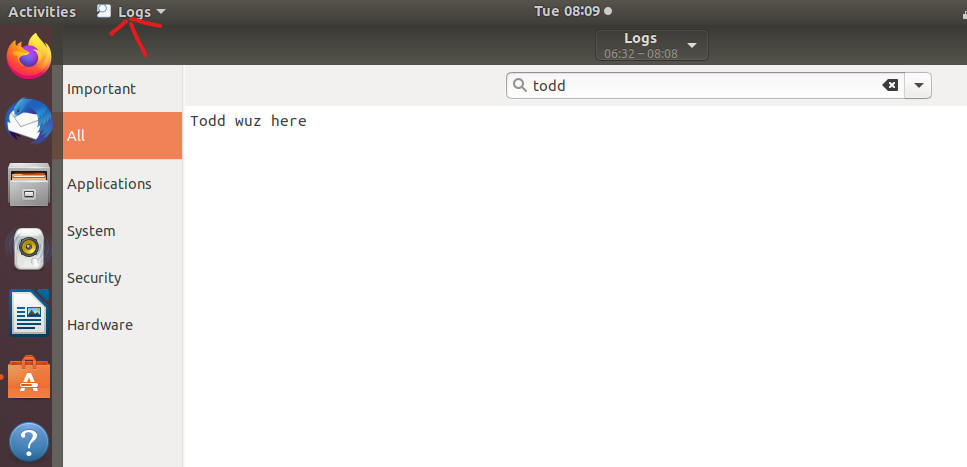
Use the built-in Logs GUI application to search all logs for your name (which should find the log entry you created). Add a screen cap of the result to your document [example].
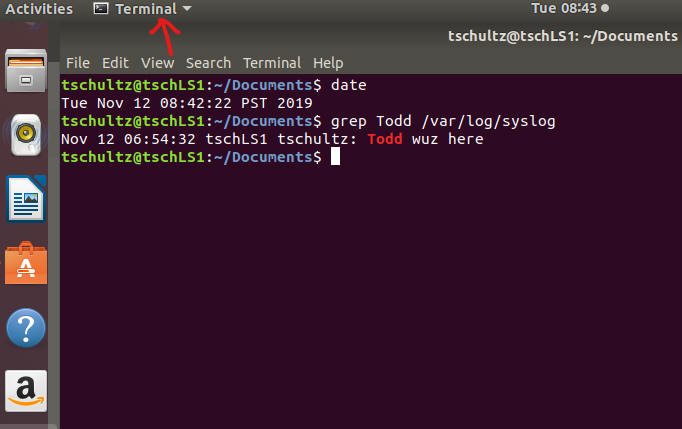
In a terminal window use the clear command and then use a grep command to find all syslog entries which included your name (hint: remember the logs are in /var/log). Add a screen cap to your document [example].
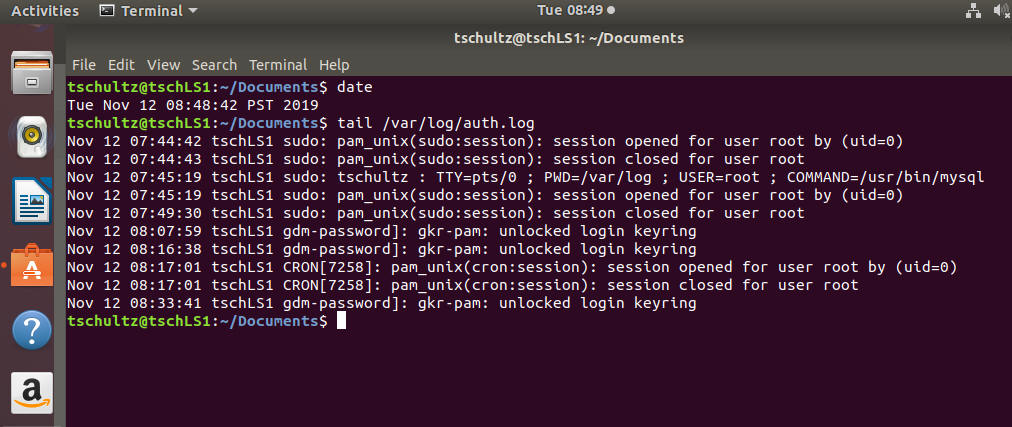
In a terminal window use the clear command and then use a tail command to list the last lines of auth.log. Add a screen cap to your document [example].
In a terminal window use the clear command and then use a grep command to find all auth.log entries which included sudo but pipes the results into tail to show just the last ten entries, adding a screen cap to your document. [no example, figure this out]
Start FireFox and try to link to
http://localhost/NoSuchFile. Then display the last lines of
the Apache access.log (e.g., Log File Viewer or Terminal | tail),
grabbing a screen cap which you add to your document.
Also display all Apache access.log entries that show a 404 error (e.g.,
find in Log File Viewer or Terminal | grep), grabbing a screen
cap which you add to your document.
(See Note above) In a terminal window try to start MySQL without sudo or entering a bad password when prompted. Then display the last lines of the MySQL error log (e.g., Log File Viewer or Terminal | tail), grabbing a screen cap which you add to your document. Also display all MySQL error.log entries that show a “Access denied” (e.g., find Log File Viewer or Terminal | grep), grabbing a screen cap which you add to your document.
Add the completed LinLogs.docx document to this assignment in D2L.
(25 pts) Establish SQL Server in Windows Server
Ref: (Video) SQL Server Quick Start
Ref: (Guide) SQL Server in Windows
In your xxxxWS1 server install SQL Server using options suggested in (Guide) SQL Server in Windows. Use sqlcmd to create the demoDB database with Member table and work with adding, updating and deleting records as described in the guide. Add yourself to the Member table using any MbrID not already taken, your JagNet ID (e.g., mine is tschultz) for NickName, and 32.70 as your balance.
In addition create a table named Activity with columns ActID (integer, nulls not allowed), Description (varchar(50), nulls not allowed), and Cost (decimal(8,2) defaulting to 0.00) setting ActID as primary key for the table. Add records for activity 911 with description ‘Doing IT (incredible things)’ which costs 0.01 and for activity 1066 ‘Battle of Hastings’ costing 10.66.
When the tasks above are complete exit sqlcmd, issue cls (to clear the screen), re-enter sqlcmd and issue following in the sqlcmd console; grab a screen cap of results named SQLServer.jpg (or other image format) that you attach to this assignment in D2L.
use demoDB;
select substring(table_name,1,10) as TabName,
    substring(column_name,1,10) as ColName,
    substring(data_type,1,10) as ColType,
    substring(column_default,1,10) as DefValue,
    is_nullable from information_schema.columns;
select * from Member;
select * from Activity;
go(25 pts) Establish MySQL in Linux
Ref: (Video) MySQL Quick Start
Ref: (Guide) MySQL in Ubuntu
In your xxxxLS1 server install MySQL using options suggested in (Guide) MySQL in Ubuntu. Use the MySQL client to create the demoDB database with Member table and work with adding, updating and deleting records as described in the guide. Add yourself to the Member table using any MbrID not already taken, your JagNet ID (e.g., mine is tschultz) for NickName, and 32.70 as your balance.
In addition create a table named Activity with columns ActID (integer, nulls not allowed), Description (varchar(50), nulls not allowed), and Cost (decimal(8,2) defaulting to 0.00) setting ActID as primary key for the table. Add records for activity 911 with description ‘Doing IT (incredible things)’ which costs 0.01 and for activity 1066 ‘Battle of Hastings’ costing 10.66.
When the tasks above are complete issue following in the MySQL client console; grab a screen cap of results named MySQL.jpg (or other image format) that you attach to this assignment in D2L.
system clear;
use demoDB;
describe Member;
describe Activity;
select * from Member;
select * from Activity;